
Not sure how to add schema markup to your WordPress site? Schema markup, also called structured data, helps search engines understand what a page is about. It can make a page eligible for enhanced search features, but it does not guarantee rich results or higher rankings.
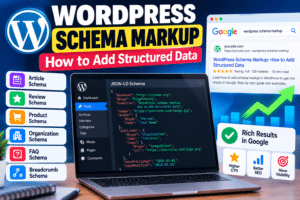
In this complete WordPress guide, you’ll learn what schema markup is, which schema types to use, how to add JSON-LD with Yoast SEO or Rank Math, how to add custom schema safely, and how to validate your implementation. Use our free Robots.txt Generator alongside schema setup to keep your crawl settings clear.
📋 Table of Contents
What Is Schema Markup?
Schema markup is structured data added to a web page to describe its content in a standardized way. It uses vocabulary from Schema.org and is commonly implemented with JSON-LD.
For example, a blog post can be labeled as an Article, a help page can be labeled as an FAQPage, and a product page can be labeled as a Product. This helps search engines understand relationships between page elements, such as the headline, author, publication date, questions, and answers.
Simple Example
A WordPress SEO blog post can include structured data that identifies:
- The page as an article
- The article headline
- The author
- The publication date
- The featured image
Google supports several structured-data formats, including JSON-LD, Microdata, and RDFa. JSON-LD is Google’s recommended format and is usually the easiest option to add and maintain in WordPress because it is embedded in a script rather than mixed throughout visible HTML.
Schema Markup vs. Rich Results
Well That Schema markup and rich results are related, but they are not the same thing. Schema describes the content; rich results are enhanced search displays that may appear when content is eligible.
| Term | What It Means | Example |
|---|---|---|
| Schema markup | Code that describes page content using structured data | JSON-LD identifying a page as an Article |
| Structured data | A standardized way to label page information | Schema.org vocabulary in JSON-LD |
| Rich result | An enhanced search display beyond a standard result | Product, review, event, or other enhanced display |
| Eligibility | A page meets the requirements for a feature | Valid product schema on a genuine product page |
⚠️ Important Reality Check
Valid schema makes a page eligible for a rich result. It does not guarantee that Google will display one, and structured data is not a generic ranking factor. Focus on adding accurate schema that reflects real page content.
How to Choose the Right Schema Type
Choose schema based on what the page actually contains—not based on the rich result you would like to receive. Adding a schema type that does not match the visible content can violate Google’s structured-data guidelines.
✅ Common Schema Types for WordPress
- Article or BlogPosting: For blog posts and editorial articles
- FAQPage: For pages that present genuine questions and answers
- HowTo: For step-by-step instructional content, where eligible
- Product: For individual product pages
- Review: For genuine review content
- Organization: For information about an organization
- WebSite: For site-level information
- BreadcrumbList: For breadcrumb navigation
- LocalBusiness: For businesses with a physical or service-area presence
⚠️ Use FAQ Schema Carefully
FAQ schema is intended for pages that provide official questions and answers. Do not add it to forum threads, comment sections, or pages where visitors can submit answers. Also note that Google announced in 2023 that FAQ rich results would be shown only for well-known, authoritative government and health websites.
How to Add Schema Markup with Yoast SEO
Yoast SEO can automatically add useful schema to WordPress pages, including site-level, page-level, and article-related structured data. The exact labels and options can change between plugin versions, so follow the options shown in your installed version.
✅ Basic Yoast Setup
- Install and activate Yoast SEO.
- Go to Yoast SEO → Settings.
- Open the relevant site or content settings.
- Check that schema-related features are enabled.
- Set your organization or person details where Yoast asks for them.
- Open a post and review the Yoast schema settings.
- Choose the most accurate page or article type available.
- Update the post and test it with Google’s Rich Results Test.
Example: Add Article Schema to a Blog Post
For a standard blog post, Yoast commonly outputs article-related structured data automatically. Make sure the post has a clear title, author, publication date, and featured image where appropriate.
In the Yoast settings for the post, select the most accurate article type available. Avoid selecting a specialized schema type unless the page genuinely represents that content type.
After saving, test the live URL in the Rich Results Test to confirm that Google can read the structured data.
How to Add Schema Markup with Rank Math
Rank Math also provides schema options for WordPress content. As with Yoast, use the schema type that matches the visible content and follow the settings in your installed plugin version.
✅ Basic Rank Math Setup
- Install and activate Rank Math SEO.
- Go to Rank Math SEO → Dashboard.
- Open the schema or structured-data settings.
- Enable schema where available.
- Set default schema for posts and pages.
- Open an individual post or page.
- Use the schema tab or schema generator to choose the appropriate type.
- Complete only the fields that accurately describe the page.
- Save, update the page, and test it with the Rich Results Test.
Example: Add FAQ Schema
If your page includes a visible FAQ section, add FAQ schema only for questions and answers that appear on that page.
For example, a page about WordPress permalinks can include questions such as “What is a permalink?” and “How do I change permalinks in WordPress?”—but only if those questions and answers are visible to users.
Do not add FAQ schema to a page that does not contain a real FAQ section.
How to Add Custom JSON-LD Schema in WordPress
If your SEO plugin does not support the schema type you need, you can add custom JSON-LD. Use a child theme, a code snippets plugin, or a dedicated schema plugin. Avoid pasting custom code directly into a parent theme, because a theme update can overwrite it.
✅ Safe Custom JSON-LD Workflow
- Back up your site.
- Use a child theme or a trusted code snippets plugin.
- Create the JSON-LD for the specific page.
- Add the code only where it applies.
- Test the code with Google’s Rich Results Test.
- Check the live page after deployment.
- Monitor Search Console for structured-data issues.
Example: Basic JSON-LD Article Schema
This is a simplified example. Replace every placeholder with accurate information from the page, and do not add this code if your SEO plugin already outputs equivalent article schema.
<script type="application/ld+json">
{
  "@context": "https://schema.org",
  "@type": "Article",
  "headline": "WordPress Schema Markup: How to Add Structured Data",
  "description": "Learn how to add schema markup in WordPress using JSON-LD, Yoast SEO, or Rank Math.",
  "author": {
    "@type": "Person",
    "name": "Your Author Name",
    "url": "https://yourdomain.com/author/your-author/"
  },
  "datePublished": "2026-10-13",
  "dateModified": "2026-10-13",
  "image": "https://yourdomain.com/wp-content/uploads/2026/10/schema-markup.png",
  "mainEntityOfPage": {
    "@type": "WebPage",
    "@id": "https://yourdomain.com/wordpress-schema-markup/"
  }
}
</script>
Use only properties that are accurate for your page. Google’s Article documentation advises adding properties that apply to the content and validating the implementation with the Rich Results Test.
Useful Schema Examples for WordPress Sites
| Page Type | Appropriate Schema | Example Use |
|---|---|---|
| Blog post | Article or BlogPosting |
A WordPress SEO tutorial |
| FAQ page | FAQPage |
A page with visible questions and answers |
| Tutorial | HowTo, where eligible |
A step-by-step setup guide |
| Product page | Product |
A WordPress plugin or product page |
| Review page | Review |
A genuine review of one product |
| Local business page | LocalBusiness |
A business location or service-area page |
| Site homepage | Organization or WebSite |
Site identity and organization details |
How to Validate and Test Schema Markup
Never assume schema is working just because the plugin says it is enabled. Test the live page after publishing or updating it.
✅ Testing Checklist
- Use Google’s Rich Results Test to check for Google-specific rich-result eligibility.
- Use the Schema Markup Validator for broader Schema.org validation.
- Use Search Console’s URL Inspection tool to check how Google sees the indexed version.
- Check Search Console’s rich-result reports after deployment.
- Fix critical errors before adding more schema.
Google recommends testing structured data during development and monitoring it after deployment, because template or serving changes can break it later.
Common Schema Markup Mistakes to Avoid
1. Adding Schema That Does Not Match the Page
Do not add Product schema to a blog post or FAQ schema to a page without visible questions and answers. Schema should describe the page’s actual content.
2. Marking Up Invisible Content
Do not add structured data for content that users cannot see on the page. Google’s guidelines require markup to be representative of the main content and visible to users.
3. Using Multiple Plugins for the Same Schema
Avoid running two SEO plugins or schema plugins that output duplicate structured data for the same page. Choose one primary solution and test the result.
4. Treating Schema as a Ranking Guarantee
Schema can make a page eligible for enhanced search features, but it does not guarantee rich results or improved rankings.
5. Copying Example Code Without Updating It
Replace every placeholder, URL, date, author name, and image URL with accurate information from the actual page.
WordPress Schema Markup FAQ
Frequently Asked Questions
Q: What is the best schema format for WordPress?
A: JSON-LD is generally the easiest and Google-recommended format. It is added as a script and does not require wrapping every visible HTML element in markup.
Q: Does schema markup improve Google rankings?
A: Structured data itself is not a generic ranking factor. It helps Google understand content and can make a page eligible for rich results, but it does not guarantee rankings.
Q: Can I add FAQ schema to every blog post?
A: No. Add FAQ schema only when the page contains genuine, visible questions and answers. Also note that FAQ rich results are no longer regularly shown for most sites.
Q: Which is better: Yoast or Rank Math for schema?
A: Both can generate useful WordPress schema. Choose the one you already use and configure it correctly. Avoid running both plugins’ schema output for the same page at the same time.
Q: How do I check whether schema is working?
A: Use Google’s Rich Results Test, the Schema Markup Validator, and Search Console’s URL Inspection tool. Then monitor Search Console’s rich-result reports after deployment.
Schema Markup Checklist
- Choose schema that matches the visible page content
- Use JSON-LD where possible
- Use one primary schema solution to avoid duplicates
- Add only accurate properties and values
- Do not mark up invisible or misleading content
- Test with the Rich Results Test before publishing
- Check the live page after deployment
- Monitor Search Console for structured-data issues
- Update schema when the page content changes
Schema markup is most useful when it accurately describes content that users can see. Start with the schema types that match your existing pages, validate them, and avoid adding markup only because it might produce a rich result.
🚀 Related Technical SEO Resources
Enjoy this post?
Buy abdelhamid BERRICHI a coffee
